

Grouping
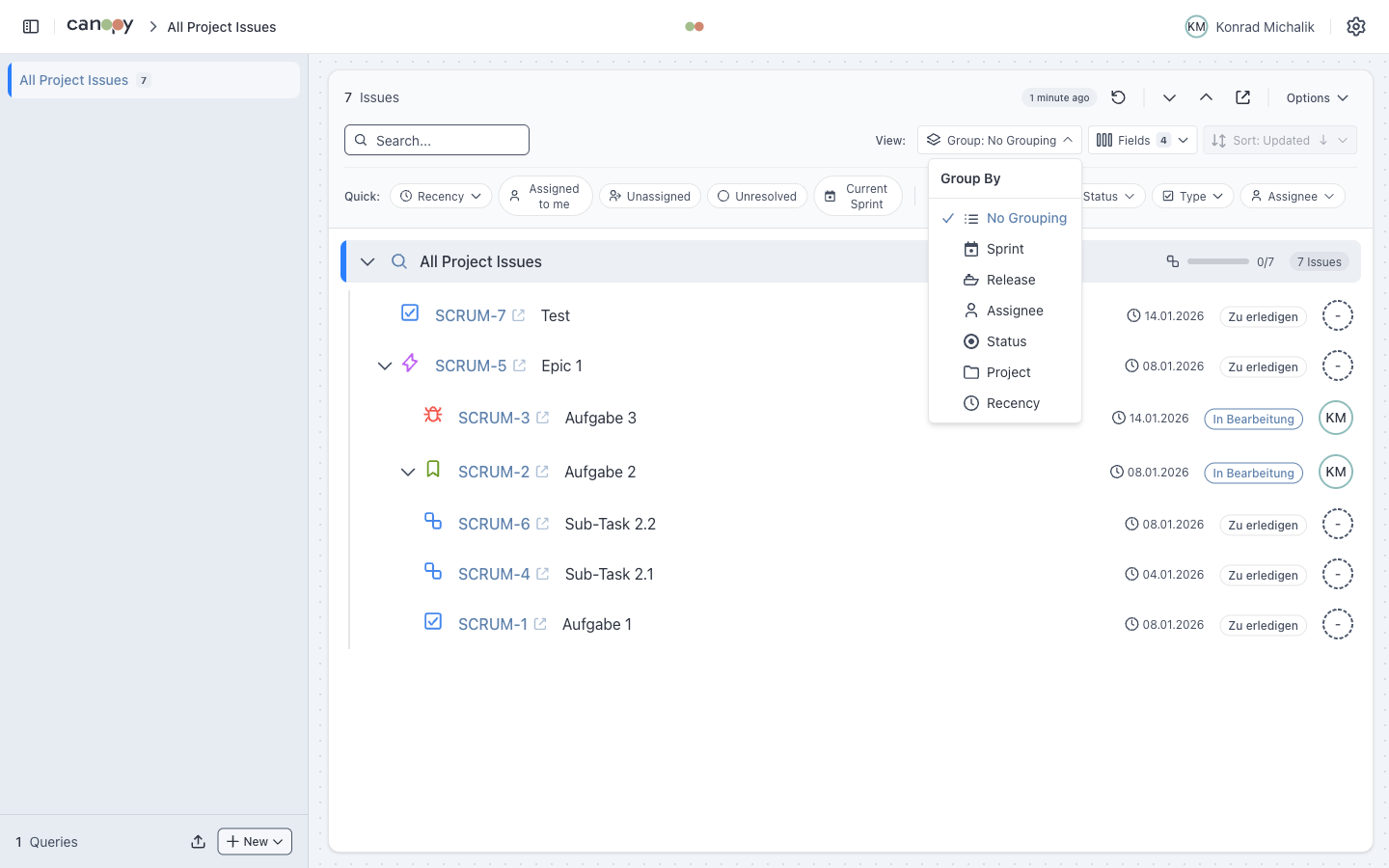
Organize issues by different criteria for better overview and sprint planning.
Grouping Options
| Option | Description |
|---|---|
| No Grouping | Default hierarchical tree view |
| Sprint | Group by sprint (Active > Future > Closed > No Sprint) |
| Release | Group by fix version / release |
| Assignee | Group by team member with avatars |
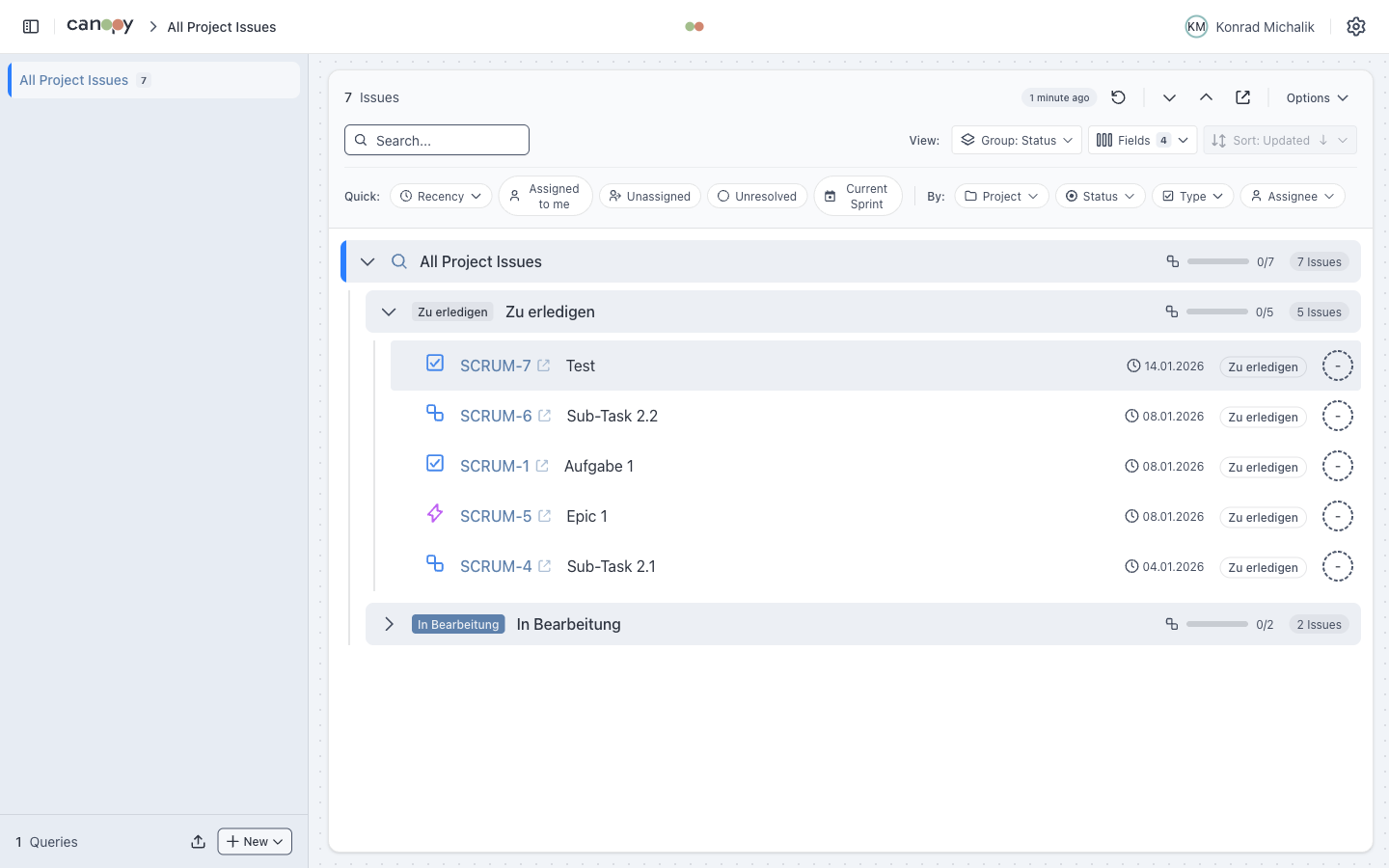
| Status | Group by status (To Do > In Progress > Done) |
| Project | Group by Jira project |
| Recency | Group by last update time |
Sprint Grouping
When grouping by Sprint, issues are organized by sprint state:
- Active Sprint - Currently in progress (highlighted)
- Future Sprints - Planned sprints
- Closed Sprints - Completed sprints
- No Sprint - Backlog items
Sprint Features
- Progress bar showing completion percentage
- Sprint date range display
- Active sprint highlighted
- Sprint state badges (Active, Future, Closed)
Release Grouping
Groups issues by Fix Version / Release:
- Issues grouped by their assigned fix version
- "No Release" group for items without a fix version
- Useful for release planning and tracking
Assignee Grouping
Groups issues by assigned team member:
- User avatar displayed next to name
- "Unassigned" group for items without assignee
- Count of issues per assignee
Status Grouping
Groups issues by status category:
- To Do - Not started
- In Progress - Work in progress
- Done - Completed
Status colors match your Jira configuration.
Project Grouping
Useful when your JQL query spans multiple projects:
- Groups by project key and name
- Project avatar displayed
- Count of issues per project
Recency Grouping
Groups issues by when they were last updated:
| Bucket | Description |
|---|---|
| Last 3 Days | Recently updated issues |
| Last 7 Days | Updated this week |
| Last Month | Updated in the last 30 days |
| Older | Updated more than 30 days ago |
Group Headers
Each group header shows:
- Group name (Sprint name, Assignee name, etc.)
- Issue count
- Expand/collapse chevron
- For Sprints: progress bar and date range
Combining with Filters
Grouping works together with filters:
- Filters are applied first (reducing the issue set)
- Grouping organizes the filtered results
This allows you to filter to "In Progress" issues and then group by Assignee to see workload distribution.