

Timer & Booking
roots offers several ways to log time.
Timer
Start a timer to track work in real-time:
- Click the Timer button in the toolbar
- Select a project and task (from Moco)
- Optionally add a description
- Click Start
While running, the timer shows elapsed time in the toolbar and as a dock badge on macOS. You can pause and resume the timer at any time.

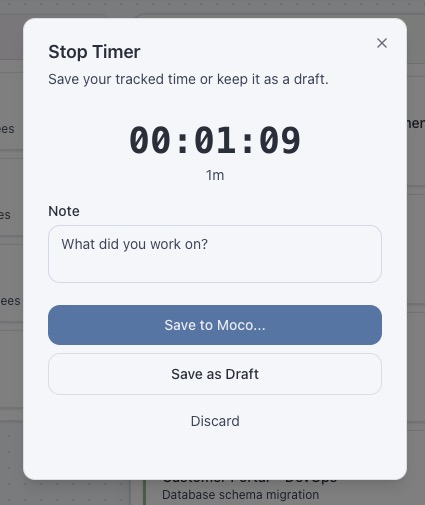
When you stop the timer, you can either:
- Book directly — creates a Moco time entry immediately
- Save as draft — saves the entry for later booking
Drafts
Drafts are unsaved time entries that persist across sessions. They're useful when you stop a timer but aren't ready to book the time yet.
- Open the Drafts drawer from the toolbar to see all saved drafts
- Each draft shows the date, hours, project/task and description
- Click a draft to book it to Moco or delete it
- Delete all drafts at once with the button at the bottom
Drafts shorter than 1 minute are automatically discarded.
Quick Booking
Create a time entry without the timer:
- Right-click in the Moco column or use the + button
- Select project, task and enter hours
- Add an optional description
- Click Save
Book from Outlook
Convert a calendar event into a Moco entry:
- Hover over an Outlook event card
- Click the + icon that appears
- Select the target project and task
- The duration and description are pre-filled from the event
- Click Book
Favorites
Pin project/task pairs for frequent use:
- Add a favorite from any Moco entry's context menu
- Use a favorite by clicking it in the sidebar to start a quick booking
- Reorder by dragging favorites in the sidebar
- Edit or remove via the favorite's context menu